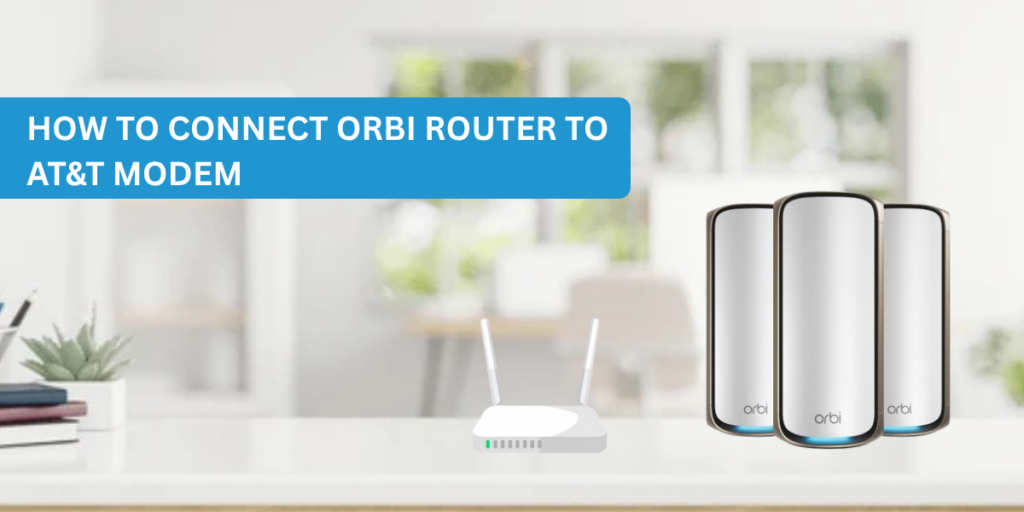
To connect an Orbi router to an AT&T modem, enable IP Passthrough on your AT&T gateway, connect the Orbi Internet (WAN) port to the gateway with an Ethernet cable, then restart both devices and complete the setup using the Orbi app or Orbilogin.com.
If you’ve recently purchased an Orbi WiFi system and want to use it with your AT&T internet connection, you’re in the right place.
Many users think they can simply unplug the AT&T gateway and replace it with an Orbi router. Unfortunately, it doesn’t work that way. Unlike many internet providers, AT&T requires you to keep its gateway connected to the network. This often confuses new users because AT&T gateways do not offer a traditional Bridge Mode.
The good news is that you can still enjoy all the benefits of Orbi WiFi. You simply need to configure your AT&T gateway correctly. Whether you have an AT&T Fiber connection or a standard AT&T internet service, this guide explains everything.
I personally helped a friend install an Orbi system with an AT&T BGW320 gateway. At first, the Orbi kept showing “No Internet.” After enabling IP Passthrough and restarting both devices in the correct order, everything started working perfectly. The whole process took less than fifteen minutes.
This guide walks you through the same steps.
Before You Start — What You Need
Before changing any settings, make sure you have everything ready.
| Item | Why You Need It |
| AT&T Gateway | Provides your internet connection |
| Orbi Router | Creates your WiFi network |
| Orbi Satellites | Extends WiFi coverage |
| Ethernet Cable | Connects Orbi to the gateway |
| Admin Login | Required to change gateway settings |
Preparing everything first helps avoid interruptions during setup.
Your AT&T Gateway Model (BGW210, BGW320, or Older)
Most people have one of these AT&T gateways.
| Gateway Model | Compatible with Orbi | Notes |
| BGW210 | Yes | Supports IP Passthrough |
| BGW320 | Yes | Recommended for AT&T Fiber |
| Pace 5268AC | Yes | Uses DMZplus instead of IP Passthrough |
| NVG599 | Yes | Older interface |
You can usually find the model number on a sticker underneath the gateway.
Orbi Router and Satellites, Powered and Unboxed
Before beginning:
Plug in the Orbi router.
- Keep satellites nearby. Do not connect satellites until the main router is online. This makes the installation much easier.
Ethernet Cable
- Use a quality Ethernet cable. One end connects to a LAN port on the AT&T gateway. The other end connects to the yellow Internet/WAN port on the Orbi router.
Many setup problems happen because users accidentally plug the cable into a LAN port on the Orbi instead of the Internet port.
AT&T Account Login (for Smart Home Manager Access)
You’ll need administrator access to your gateway.
You can either:
- Log in through the gateway’s admin page.
- Use the AT&T Smart Home Manager if supported.
Keep your Device Access Code ready. It is usually printed on the gateway label.
Why AT&T Gateways Are Different (No True Bridge Mode)
One of the biggest surprises for new users is that AT&T gateways don’t work like regular cable modems. Most internet providers let you enable Bridge Mode and completely disable routing.
AT&T does not.
Instead, it offers another feature that works similarly. Understanding this difference will save you hours of troubleshooting.
AT&T Doesn’t Support Standard Bridge Mode Like Other ISPs
With many ISPs, Bridge Mode turns the modem into a simple internet pass-through device. AT&T gateways continue handling authentication and network communication. Because of this, removing the gateway entirely usually isn’t possible. Instead, the gateway stays connected while allowing another router to manage your home network.
IP Passthrough vs. Access Point Mode — What AT&T Offers Instead
There are two common ways to use an Orbi router with AT&T.
| Feature | IP Passthrough | Access Point Mode |
| Orbi controls routing | Yes | No |
| Orbi creates WiFi | Yes | Yes |
| AT&T gateway handles routing | No | Yes |
| Best Performance | Best | Better |
| Recommended | Yes | Good Alternative |
Most users should choose IP Passthrough. It gives Orbi more control over your network.
Why This Matters for U-verse TV Users
If you have AT&T U-verse TV, be careful when changing gateway settings. The gateway often manages TV services along with internet traffic. Disabling the wrong feature may affect TV receivers. If your television works perfectly now, only change the settings described in this guide.
Choose Your Setup Method
There are three different ways to connect an Orbi router to an AT&T gateway. Not every method offers the same performance. Let’s compare them.
| Setup Method | Difficulty | Performance | Recommended |
| IP Passthrough | Easy | Excellent | Best |
| Access Point Mode | Easy | Very Good | Good |
| Double Router | Easy | Poor | Avoid |
General details about the setup methods
Method 1 — IP Passthrough (Recommended for Most Users)
This is the method most networking experts recommend.
Why?
Because the Orbi becomes your main router.
Benefits include:
- Better gaming
- Better VPN compatibility
- Easier port forwarding
- Better parental controls
- Simpler device management
Most AT&T Fiber users should choose this option.
Method 2 — Access Point Mode
Access Point Mode is ideal when:
- You don’t want to modify gateway settings.
- Another person manages the AT&T account.
- You only want stronger WiFi coverage.
- The AT&T gateway continues managing your network.
- Orbi simply broadcasts WiFi.
Method 3 — Double Router Setup (Not Recommended)
Some users simply connect Orbi without changing any settings. While it appears to work, this creates something called Double NAT.
Double NAT often causes:
- Gaming issues
- VPN problems
- Camera access failures
- Slow device discovery
- Port forwarding errors
Unless absolutely necessary, avoid this setup.
Now let’s go through the process in detail
Reliable comprehensive methods to connect an Orbi router to an AT&T gateway
Method 1 — Set Up Orbi Using IP Passthrough
This is the easiest and most reliable way to connect an Orbi router to an AT&T gateway. Follow each step carefully.
Step 1 — Log into AT&T Smart Home Manager or Gateway Admin Panel
Open a web browser. Enter your gateway address. Log in using the Device Access Code printed on the gateway.
Once logged in, locate:
Firewall → IP Passthrough
The menu location may differ slightly depending on whether you’re using a BGW210 or BGW320.
Add screenshot of step 1
Step 2 — Enable IP Passthrough and Select Passthrough Mode: DHCPS-fixed
Inside the IP Passthrough page:
- Enable IP Passthrough.
- Choose DHCPS-fixed.
- Save the settings.
This allows your Orbi router to receive the public IP address. Many users skip this step and wonder why Orbi never detects the internet.
Step 3 — Note Your Orbi Router’s MAC Address
Your gateway needs to know which device should receive the public IP. Find your Orbi router’s MAC address.
You can locate it:
- On the sticker underneath the router.
- In the Orbi app.
- During setup.
- Select that MAC address inside the gateway settings.
Step 4 — Connect Orbi’s WAN/Internet Port to a LAN Port on the AT&T Gateway
Now connect the hardware. The correct connection looks like this:
AT&T Gateway LAN Port → Ethernet Cable → Orbi Internet (WAN) Port
Do not connect LAN-to-LAN. That is one of the most common setup mistakes.
Step 5 — Reboot Both Devices in the Correct Order
Restarting in the right order is extremely important.
Follow this sequence:
- Turn off the Orbi router.
- Restart the AT&T gateway.
- Wait until the gateway is fully online.
- Turn on the Orbi router.
- Wait several minutes.
I once skipped this order during a setup, and the Orbi stayed offline until I restarted everything correctly. Following the proper sequence solved the issue immediately.
Step 6 — Set Up Orbi via the Orbi App or Orbilogin.com
Now finish the installation.
You can use either:
- The Orbi mobile app.
- Orbilogin.com from a browser.
- Complete the setup wizard.
Create:
- WiFi network name (SSID)
- WiFi password
- Admin password
Once setup finishes, connect your devices to the new Orbi WiFi network.
Method 2 — Set Up Orbi in Access Point (AP) Mode
If you don’t want to enable IP Passthrough, Access Point Mode is the next best option. This method is simple and works well for users who only want stronger WiFi coverage while keeping the AT&T gateway as the primary router.
When Should You Choose AP Mode?
AP Mode is a good choice if:
- You don’t want to change gateway settings.
- Someone else manages your AT&T account.
- You use AT&T U-verse TV and want to avoid network issues.
- You only need stronger WiFi coverage.
- You don’t use advanced features like port forwarding or custom firewall rules.
Although AP Mode is slightly less powerful than IP Passthrough, it is very stable and simple to maintain.
Step 1 — Disable WiFi Radios on the AT&T Gateway
Before connecting your Orbi system, it’s a good idea to turn off the WiFi on the AT&T gateway. If both devices broadcast WiFi at the same time, your phones and laptops may switch between networks. This can cause slow speeds or random disconnects.
Add screenshots of this process.
How to Disable WiFi
- Log in to your AT&T gateway.
- Open the WiFi settings.
- Turn off both the 2.4 GHz and 5 GHz wireless radios.
- Save the changes.
Your internet will continue working because the Orbi router will now provide the WiFi signal.
Personal Tip:
I once left both WiFi networks enabled during an installation. My phone kept jumping between the AT&T gateway and the Orbi network, making it seem like the internet was dropping. Disabling the gateway’s WiFi solved the problem immediately.
Step 2 — Connect Orbi to the Gateway via Ethernet
Now it’s time to connect the hardware. Use an Ethernet cable.
Connect:
AT&T Gateway LAN Port → Orbi Internet (WAN) Port
Do not connect LAN-to-LAN unless specifically instructed for your Orbi model. After connecting the cable, power on both devices. Wait until the Orbi router’s LED becomes stable.
Step 3 — Switch Orbi to AP Mode in Settings
Next, configure the Orbi router and then open the Orbi App or visit orbilogin.com. Log in with your administrator account then open Advanced Settings. Go to Router Mode and select Access Point Mode, now save the settings. The Orbi router will restart automatically. After restarting, the AT&T gateway will assign IP addresses to all your devices.
Step 4 — Match SSID and Password (Optional)
For easier roaming, you can use the same WiFi name (SSID) and password that you previously used.
This means:
- Your phones reconnect automatically.
- Smart TVs stay connected.
- Smart home devices don’t need to be configured again.
- Family members won’t notice any change.
If you prefer, you can also create a completely new WiFi network.
Quick Comparison
| Option | Benefit |
| Same SSID | Devices reconnect automatically |
| New SSID | Easier to identify the new Orbi network |
Check our Related Guide: set up Orbi in bridge mode
Avoiding Double NAT
One of the biggest networking problems people face after connecting an Orbi router to an AT&T gateway is Double NAT. Many users don’t even know it’s happening until they start experiencing connection problems. Let’s understand what it means.
What Is Double NAT?
NAT stands for Network Address Translation. Normally, only one router should manage internet traffic. If both your AT&T gateway and your Orbi router are acting as routers, your network ends up with two layers of NAT. This is called Double NAT. Although regular web browsing usually works, other online activities may not.
Why Double NAT Causes Problems
Double NAT can affect:
- Online gaming
- VPN connections
- Remote desktop software
- Security cameras
- Port forwarding
- Smart home devices
- Voice and video calls
You may notice:
- High ping
- Connection timeouts
- Game matchmaking failures
- Random disconnects
IP Passthrough vs Double NAT
| Feature | IP Passthrough | Double NAT |
| Gaming | Excellent | May have issues |
| VPN | Works properly | Can fail |
| Port Forwarding | Easy | Difficult |
| Remote Access | Reliable | Often blocked |
| Recommended | Yes | No |
How to Confirm You’re Not Double-NATed
You can check your setup in a few minutes.
Method 1
Open the Orbi app. Look at the Internet IP Address.
If it starts with numbers like:
- 192.168.x.x
- 10.x.x.x
- 172.16.x.x
then your Orbi is probably receiving a private IP address instead of the public one. That usually means Double NAT is still active.
Method 2
Open any website that shows your public IP address. Compare it with the WAN IP shown in your Orbi settings. If they are different, Double NAT may still exist.
Orbi Not Detecting Internet After Connecting to AT&T Gateway?
Many users complete the setup but the Orbi app still says:
“No Internet Connection.” Don’t worry. Usually, one small setting is causing the problem.
Let’s check the most common fixes.
Check the Ethernet Port
This is the most common mistake. The Ethernet cable should connect like this:
| Device | Port |
| AT&T Gateway | LAN Port |
| Orbi Router | Internet (WAN) Port |
If you accidentally connect the cable to one of the Orbi LAN ports, the router will not detect the internet.
Confirm IP Passthrough Was Actually Applied
Sometimes the settings appear to save but are not fully applied. Go back into your gateway settings.
Check that:
- IP Passthrough is enabled.
- Passthrough Mode is DHCPS-fixed.
- Your Orbi router’s MAC address is selected.
- Changes were saved successfully.
Even experienced users sometimes miss this step.
Restart Both Devices in the Correct Order
After changing gateway settings, always restart the equipment in the correct sequence.
- Turn off the Orbi router.
- Restart the AT&T gateway.
- Wait until all gateway lights become stable.
- Turn on the Orbi router.
- Wait several minutes.
This allows the gateway to assign the public IP address correctly. Skipping the reboot often causes the Orbi to remain offline.
You can check our Guide: reset and reboot the Orbi router
Special Case — AT&T Fiber with U-verse TV
If you have AT&T Fiber along with U-verse TV, your setup requires a little extra attention. The TV receivers communicate with the AT&T gateway. Because of this, you should not completely remove the gateway from your network. Instead, let both devices work together.
Why You May Need to Keep the AT&T Gateway Active
Unlike many internet providers, AT&T gateways also manage television services. If certain gateway features are disabled incorrectly, TV receivers may stop working properly.
Keeping the gateway connected ensures:
- TV boxes stay online.
- Program guides update correctly.
- On-demand services continue working.
- DVR features remain available.
Recommended Setup for AT&T Fiber + U-verse TV
The best setup looks like this:
| Device | Function |
| AT&T Gateway | Internet authentication and TV services |
| Orbi Router | Primary WiFi network |
| Orbi Satellites | Whole-home WiFi coverage |
| TV Receivers | Connected through the gateway as required |
This arrangement gives you excellent wireless coverage while maintaining reliable television service. Many AT&T Fiber users successfully use this exact configuration every day without any issues.
Orbi Model Compatibility with AT&T Gateways
The good news is that almost every modern Orbi WiFi system works well with AT&T internet. Whether you have AT&T Fiber or a standard AT&T gateway, you can use IP Passthrough or Access Point Mode depending on your needs. Before purchasing a new Orbi system, it’s helpful to know which models are compatible with popular AT&T gateways.
| Orbi Model | BGW210 | BGW320 | Best Setup Method |
| Orbi 970 Series | Yes | Yes | IP Passthrough |
| Orbi 960 Series | Yes | Yes | IP Passthrough |
| Orbi RBR860/RBK863 | Yes | Yes | IP Passthrough |
| Orbi RBR850/RBK852 | Yes | Yes | IP Passthrough |
| Orbi RBK752/RBR750 | Yes | Yes | IP Passthrough |
| Older Orbi AC Models | Yes | Yes | AP Mode or IP Passthrough |
No matter which Orbi model you own, always update the firmware before completing the setup. The latest firmware improves compatibility, security, and overall performance.
Troubleshooting After Setup
Even after completing the setup successfully, you may run into a few common issues. Most of them are easy to fix with a few simple checks.
Slow Speeds After Connecting to AT&T
If your internet speed is slower than expected, don’t assume the Orbi router is faulty.
Check these items first:
- Run a speed test while connected to the main Orbi router.
- Make sure IP Passthrough is enabled correctly.
- Confirm the Ethernet cable supports Gigabit speeds (Cat5e or Cat6).
- Update the firmware on both the AT&T gateway and the Orbi router.
- Place the Orbi router in an open area instead of inside a cabinet.
- Avoid placing the router near microwaves or cordless phones.
Speed Troubleshooting Checklist
| Problem | Possible Solution |
| Slow WiFi | Move the router to an open location |
| Slow wired speed | Replace the Ethernet cable |
| Speed drops at night | Restart the gateway and Orbi |
| One room has weak signal | Move the satellite closer |
| Speed is fine near router only | Add another satellite |
See our Guide: Orbi slow internet
Real-Life Example:
One homeowner thought the Orbi router was limiting their 1 Gbps AT&T Fiber connection. After testing, we found the router was inside a closed TV cabinet. Moving it to a shelf improved WiFi speeds throughout the house without changing any settings.
Satellites Not Syncing After Gateway Change
Sometimes the main Orbi router connects to the internet, but the satellites refuse to sync. This usually happens after replacing an old modem or changing gateway settings.
Try these fixes:
- Restart the main Orbi router.
- Move the satellite closer to the router during pairing.
- Press the Sync button on both devices.
- Wait at least two minutes for the connection to complete.
- Update the firmware if one device is running an older version.
- If syncing still fails, perform a factory reset on the satellite and set it up again.
Also check our resource on Orbi satellite not connecting to router.
Orbi Disconnecting Randomly on an AT&T Network
Random disconnections are frustrating, but they often have simple causes.
Check the following:
- Ensure the gateway firmware is up to date.
- Verify that only one device is acting as the router.
- Check that the Ethernet cable is securely connected.
- Avoid using damaged or very old network cables.
- Place satellites within the recommended distance from the router.
- Restart the network if you recently changed gateway settings.
- If the issue continues, reset the Orbi router and repeat the setup from the beginning.
Check out our Related Guide: Orbi keeps disconnecting
Quick Troubleshooting
| Issue | Most Likely Cause | Solution |
| No Internet | IP Passthrough not enabled | Enable it and reboot both devices |
| Double NAT | Gateway and Orbi both routing | Use IP Passthrough or AP Mode |
| Slow WiFi | Poor router placement | Move Orbi to an open location |
| Satellite Offline | Weak signal | Move satellite closer and sync again |
| Gaming Problems | Double NAT | Enable IP Passthrough |
Frequently Asked Questions
Does AT&T support true bridge mode for the BGW210/BGW320?
No. AT&T gateways such as the BGW210 and BGW320 do not support traditional bridge mode like many cable providers. Instead, AT&T offers IP Passthrough, which allows your Orbi router to receive the public IP address while the gateway remains connected to the network.
Can I use Orbi as my only router with AT&T Fiber?
Yes, but the AT&T gateway still needs to stay connected because it handles network authentication. By enabling IP Passthrough, the Orbi router becomes the primary router for your home network while the gateway continues communicating with the AT&T service.
Will IP Passthrough affect my AT&T U-verse TV service?
In most cases, no. IP Passthrough works well with U-verse TV as long as the AT&T gateway remains connected and continues handling television-related services. Avoid changing settings that specifically control IPTV unless instructed by AT&T support.
What’s the difference between IP Passthrough and Access Point mode?
IP Passthrough allows the Orbi router to manage your entire network, making it the best option for gaming, VPNs, and advanced networking. Access Point Mode keeps the AT&T gateway in control while the Orbi system simply provides better WiFi coverage throughout your home.
Why does my Orbi show no internet connection after setup?
This usually happens because the Ethernet cable is connected to the wrong port, IP Passthrough was not fully applied, or the gateway and Orbi were not restarted in the correct order. Double-check these settings before resetting your equipment.
Final Thoughts
Connecting an Orbi router to an AT&T modem or gateway is easier than it first appears. The biggest point to remember is that AT&T gateways do not support traditional Bridge Mode. Instead, most users should configure IP Passthrough, which lets the Orbi router manage the network while the AT&T gateway continues handling authentication.
Whether you’re using a BGW210, BGW320, or another AT&T gateway with AT&T Fiber, the Orbi system can deliver fast, stable, and reliable WiFi throughout your home when configured properly.
By following this guide, you’ll avoid common mistakes like Double NAT, improve your wireless coverage, and get the best performance from your Orbi mesh WiFi system.
If you ever replace your AT&T gateway in the future, simply repeat the IP Passthrough or Access Point configuration, reconnect the Orbi router, and your network should be back online within minutes.